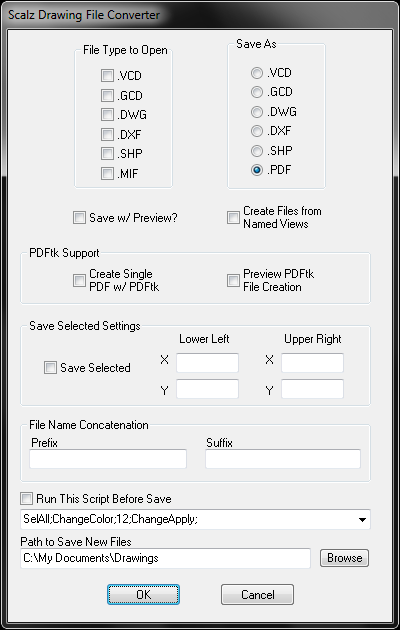
The Batch Drawing Converter allows you to specify all of the drawing types you would like to open, and then select what file type you would like to save them as. You can convert as many files as you select. Each drawing will be opened in Visual CADD, and then saved in the format you selected. The program has the ability to save Version 3 drawings in a Version 4 format, which would include the bitmap needed for file previewing in the "Open File" dialog.
An additional and very powerful feature of this program is that you can also run a Visual CADD script after the file has been opened, but before it is saved. This can be very useful. Have you ever had to open a whole bunch of drawings just to perform 1 task on each? This will allow you to do this automatically!
You can add as many scripts as you like to the drop down list box by adding them to your Scalz.ini under the [File Converter] section as shown here...
[File Converter]
LastPath=C:\ Documents\Drawings
Script=SelAll;ChangeColor;12;ChangeApply;
1=PlaceText;
2=SelAll;ChangeColor;12;ChangeApply;
3=ZmOut;
The scripts that are added to the drop down list box are those after 1=, 2= and 3=. You can add as many as you like as long as they are in numerical order.
This program does "NONE" of the actual converting of any of the file types. It's only resource for data conversion is Visual CADD itself, thus the conversion you get will be the same as if you converted them yourself using V CADD to open the drawing and save it. The converter is a program that just opens and saves a batch of drawings!